Introduction
This documentation provides complete guidance on the installation, configuration, and usage of the ScreenCapture – Screen Capture, Recording & Annotation Module for Perfex CRM.
ScreenCapture is a complete screen capture and visual documentation solution for Perfex CRM. It enables staff and customers to capture screenshots, record their screens, annotate captured images, upload existing media, and manage their visual content from a centralized gallery.
Designed as a plug-and-play add-on, ScreenCapture integrates seamlessly with Perfex CRM without requiring any core file modifications. The module includes a built-in image editor with annotation tools, browser-based screen recording, media previews, date-based organization, lazy loading, infinite scrolling, and flexible sharing and permission management, providing a convenient workflow for documenting issues, explaining tasks, and sharing visual information with staff members and customers.
System Requirements
- Perfex CRM v3.1.0 or higher
Installation
Installing the module is quick and simple, It takes just a few minutes :
- Extract the main .zip file and locate the screencapture_pro.zip file.
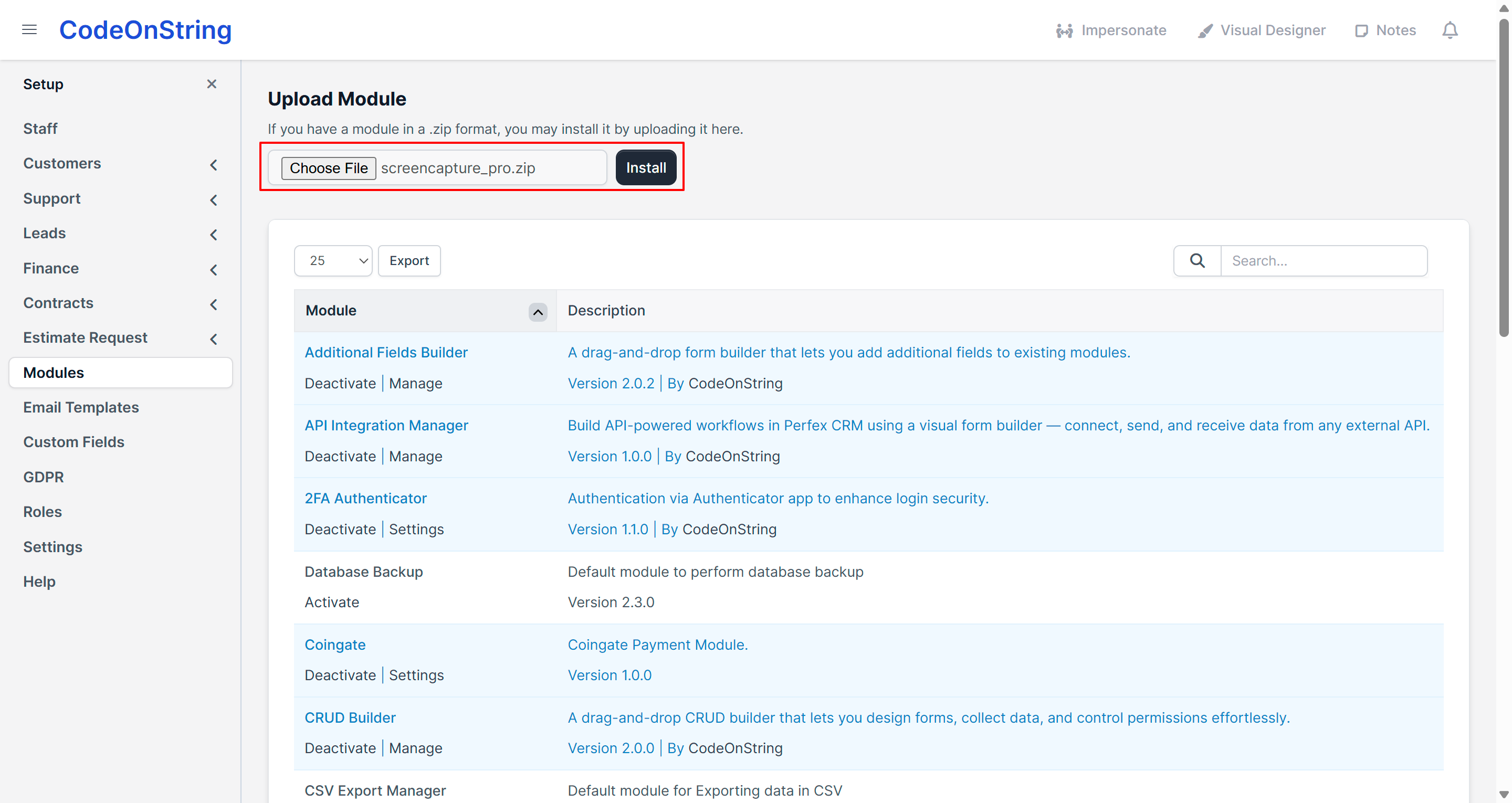
- Log in to the Perfex CRM admin panel as an administrator and go to Setup → Modules.
- Click Choose File and select the screencapture_pro.zip
- Click Install to complete the process.
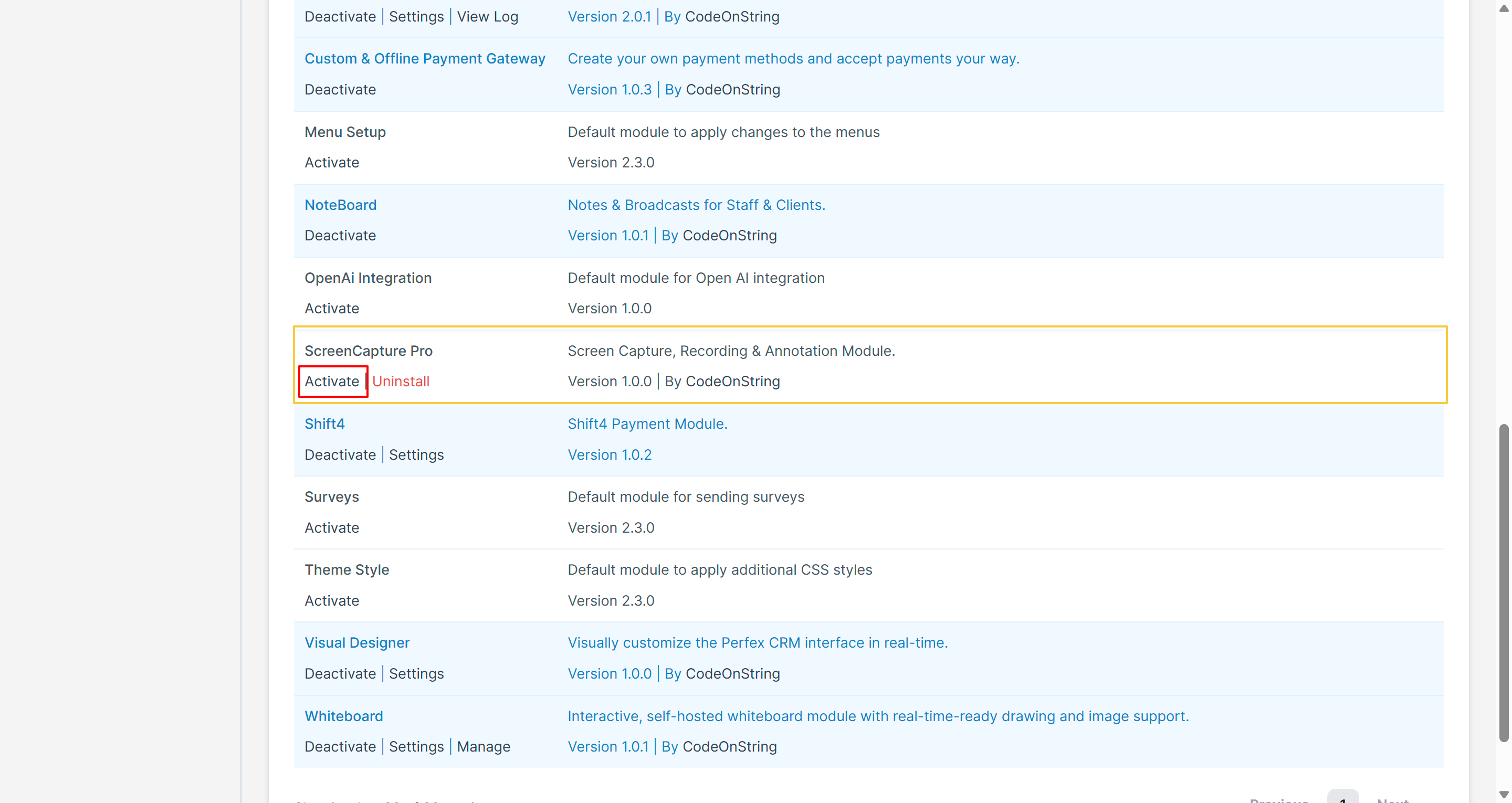
Once the module is installed, it will appear in the list of available modules below. Simply click the Activate button to enable it.
Configuration :
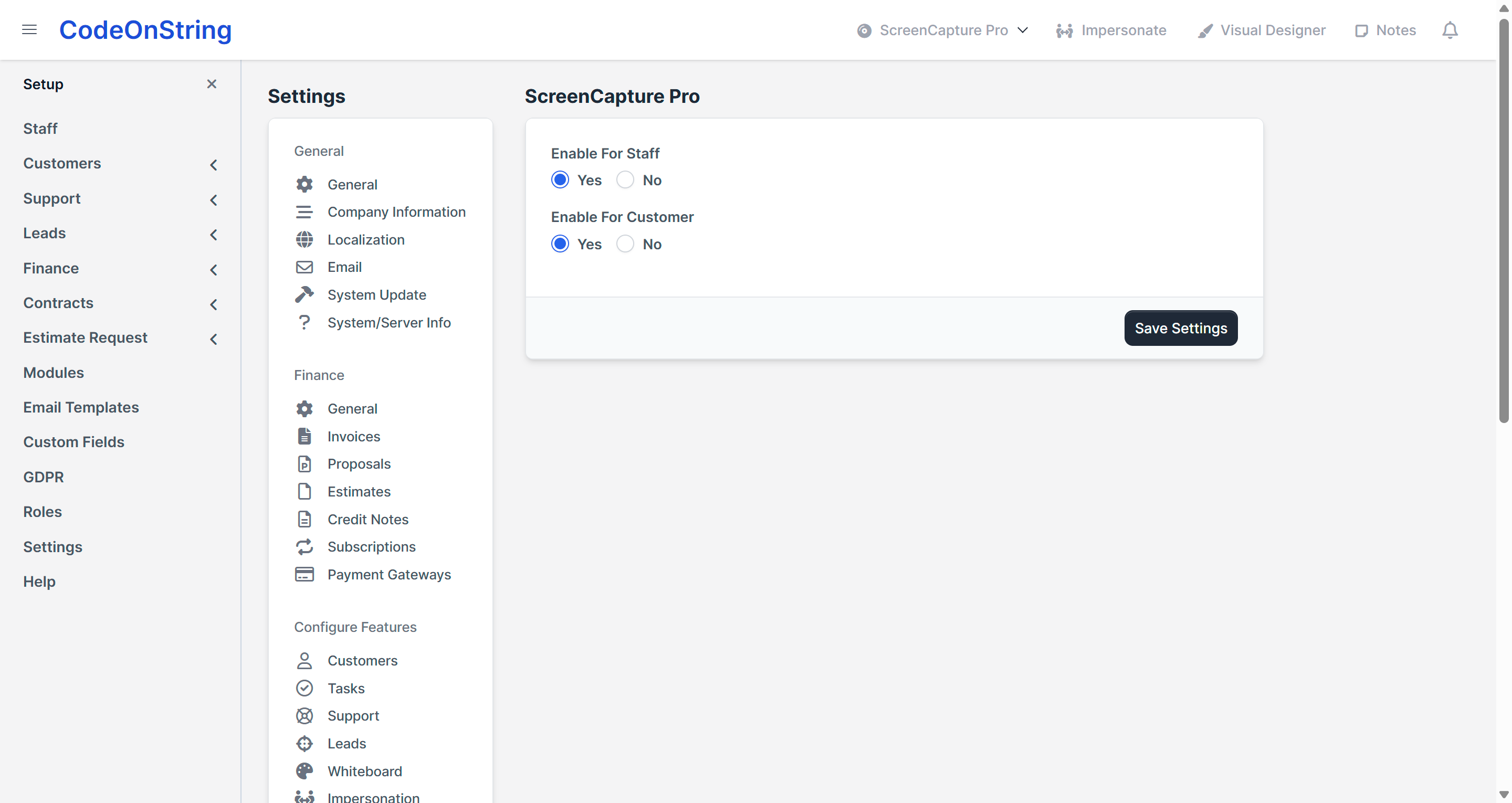
Once the module is installed and activated, you'll see three options, Deactivate and Settings. Click on the Settings button to quickly access the Capture Hub Settings

Alternatively, you can navigate to Setup → Settings → Capture Hub to access its configuration options, which include :
- Enable for Staff – When disabled, staff users will not able to use capture hub.
- Enable for Customers – When disabled, customers will not able to use capture hub.
Usage
Once the module is installed and activated, follow these steps to use it effectively:
- Screenshot Capture
-
- Open ScreenCapture from the navigation bar.
- Select Take Screenshot to capture a browser tab, application window, or your entire screen.
- Once captured, the screenshot is automatically opened in the built-in image editor for further editing and annotation.
- Screen Recording
-
- Select Screen Recording from the ScreenCapture menu.
- Choose the screen or application window you want to record and begin recording.
- After stopping the recording, the video is automatically uploaded and saved to your media gallery.
- Image Annotation & Editing
-
- Use the built-in image editor to add text, arrows, shapes, highlights, and redactions to screenshots.
- Crop, zoom, and pan images as needed while preparing your capture.
- Add or update the capture title and description before saving.
- Owners can reopen their existing screenshots and make further edits whenever required.
- Media Upload
-
- Upload existing images or videos directly from your device.
- Uploaded files are automatically added to the ScreenCapture gallery alongside screenshots and screen recordings.
- File information such as size, creation date, and video duration is stored where applicable.
- Media Gallery
-
- Browse screenshots, recordings, and uploaded media from a centralized gallery organized by date.
- Open any capture to preview the media and view its available details.
- Download captures or edit them when the current user has the required permission.
- Lazy loading and infinite scrolling help keep the gallery responsive when managing a large number of captures.
- Sharing & Permissions
-
- Users can manage the captures they own.
- Administrators can view, download, and delete captures across the system.
- Captures can be shared with specific staff members or customers with view-only access.
- Captures can also be made available to all staff members or all customers when required.
- Access & Administration
-
- Administrators can control access to ScreenCapture through Perfex CRM permissions.
- Staff and customers can access captures according to ownership, sharing, and visibility settings.
- Administrators retain overall control over captures and media stored within the module.
Tip: For the best recording experience, open the recorder in a separate browser tab. This allows you to continue working in Perfex CRM while the recording remains active.
Support
For support, please reach out to us at codeonstring@gmail.com. We will respond as soon as possible, typically within one working day.
Changelog
VERSION 1.0.0 – Initial Release