Introduction
This documentation provides complete guidance on the installation, configuration, and usage of the PWA & Push Notifications Module for Perfex CRM. This module transforms your Perfex CRM into an installable Progressive Web App (PWA), allowing staff and customers to install it on their desktop or mobile devices for a faster, app-like experience.
In addition to PWA functionality, the module includes a powerful push notification system with an integrated notification center. Administrators can create and send real-time notifications to selected staff members and customers, while users receive instant browser notifications across all their subscribed devices along with persistent in-app notifications, ensuring important announcements are never missed.
System Requirements
- Perfex CRM v3.1.0 or higher
Installation
Installing the module is quick and simple, It takes just a few minutes :
- Extract the main .zip file and locate the pwa_notifications.zip file.
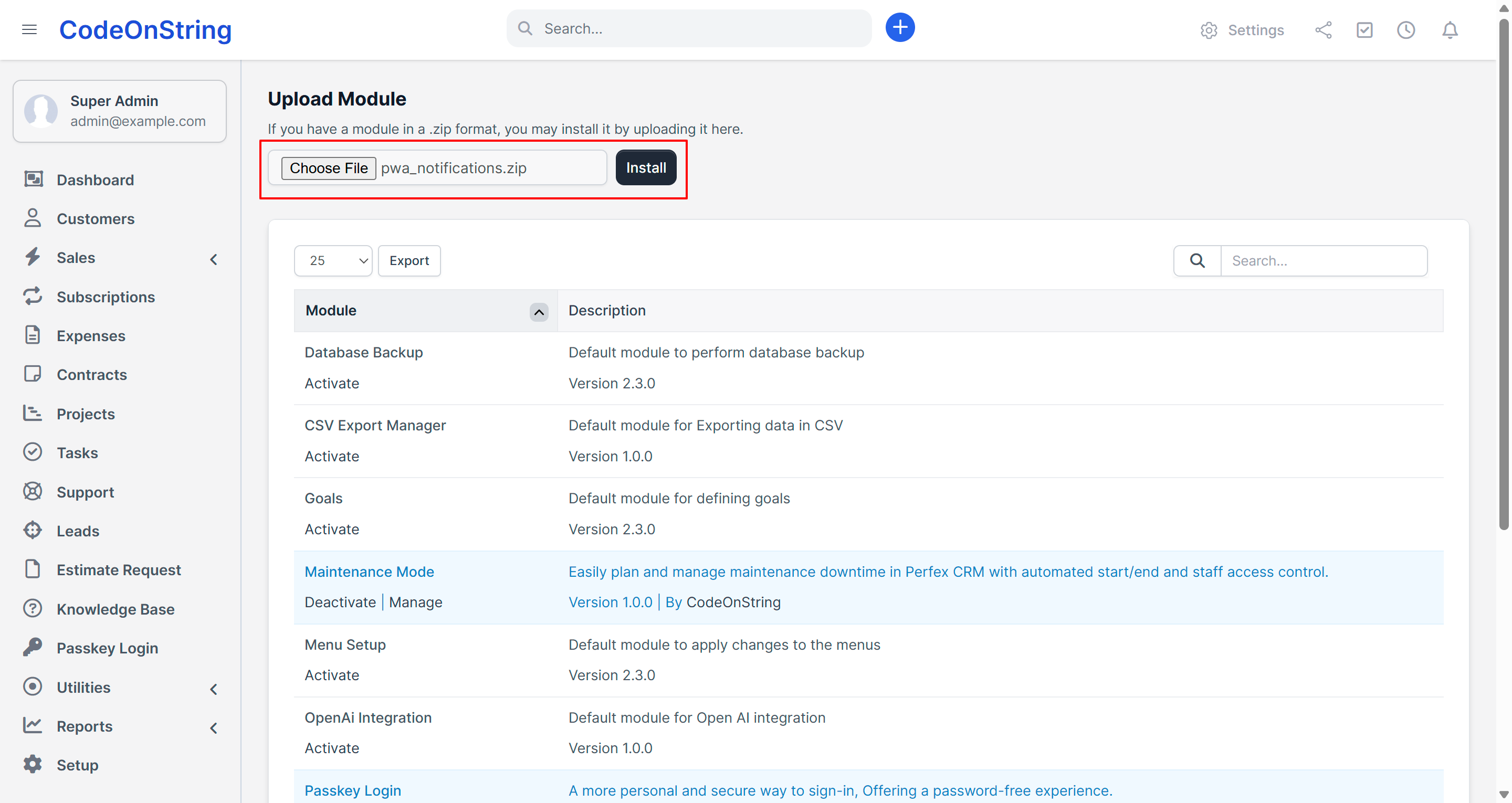
- Log in to the Perfex CRM admin panel as an administrator and go to Setup → Modules.
- Click Choose File and select the pwa_notifications.zip
- Click Install to complete the process.
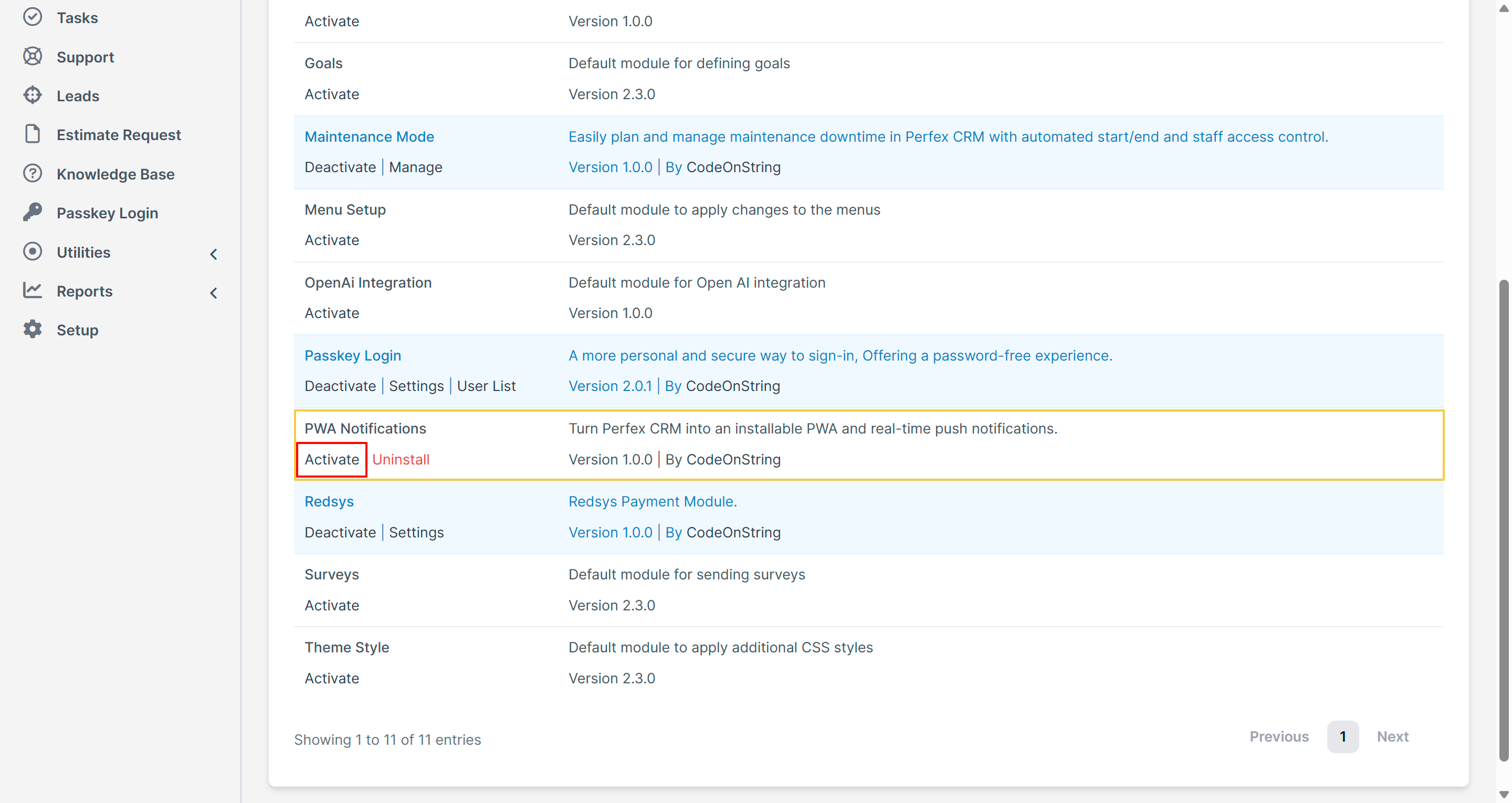
Once the module is installed, it will appear in the list of available modules below. Simply click the Activate button to enable it.
Configuration :
Once the module is installed and activated, you'll see three options, Deactivate, Settings and Manage . Click on the Settings button to quickly access the PWA Notifications Settings

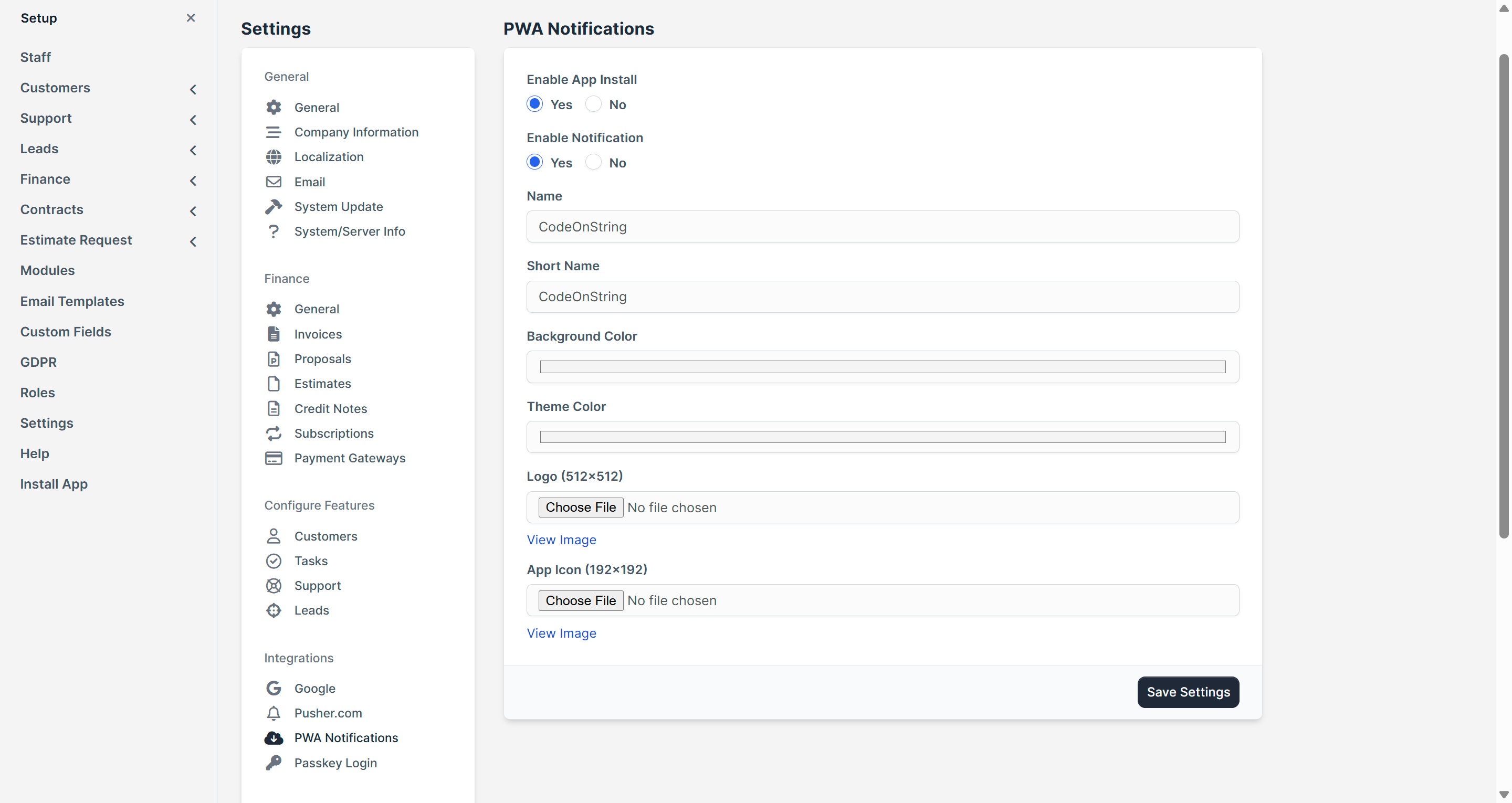
Alternatively, you can navigate to Setup → Settings → PWA Notifications to access its configuration options, which include :
- Enable App Install – When enabled, user will be able to see pop-up and install app button.
- Enable Notification – When enabled, staff will be able to send and user will be able to receive push notification.
- Name – Name of Progressive web app.
- Short Name – Short name of Progressive web app.
- Background Color – Background color of Progressive web app.
- Theme Color – Theme color of Progressive web app.
- Logo – On load logo of Progressive web app.
- App Icon – App icon of Progressive web app.
Usage
Once the module is installed and activated, follow these steps to use it effectively :
- PWA Installation
-
- Users can install Perfex CRM as a Progressive Web App (PWA) directly from the application using the Install App option.
- Once installed, Perfex CRM will launch as a standalone application without the browser interface, providing a native app-like experience.
- Push Notifications
-
- Users can enable browser push notifications by clicking the Enable Notifications button.
- Notification permission is requested only once by the browser and can be revoked at any time from the browser settings.
- Users can register multiple browsers or devices to receive notifications on all subscribed devices.
- Creating Notifications
-
- Administrators can create announcements from the Utilities → Push Notifications.
- Notifications can be sent to all or selected staff members, customers, or both.
- Each notification supports a title & message.
- Notification Delivery
-
- All notifications are stored in the integrated notification center for future reference.
- If push notifications are enabled on a user's device, the notification is delivered instantly as a browser push notification.
- If push notifications are unavailable or disabled, users can still access all notifications from the in-app notification center.
- Admin Settings
-
- Configure the application name, short name, theme color, background color, and PWA icons.
- Enable or disable the PWA installation option and push notifications globally.
- Changes to PWA settings are applied automatically without requiring manual configuration.
Update
Installing the module is quick and simple, It takes just a few minutes :
- Extract the main .zip file and locate the pwa_notifications.zip file.
- Log in to the Perfex CRM admin panel as an administrator and go to Setup → Modules.
- Click Choose File and select the pwa_notifications.zip
- Click Install to complete the process.
Once the module is installed, it will appear in the list of available modules below. Simply click the Upgrade Database button to update it.

Support
For support, please reach out to us at codeonstring@gmail.com. We will respond as soon as possible, typically within one working day.
Changelog
VERSION 1.0.1
- Added login switching button for installed PWA apps
- Improved iOS PWA installation instructions
- Minor fixes and improvements
VERSION 1.0.0 – Initial Release